

Standard Connections
The Available Connections tab displays the standard connections supported by Duvo. Each connection card provides details on the connection’s capabilities.- Click “Connect” on the desired connection
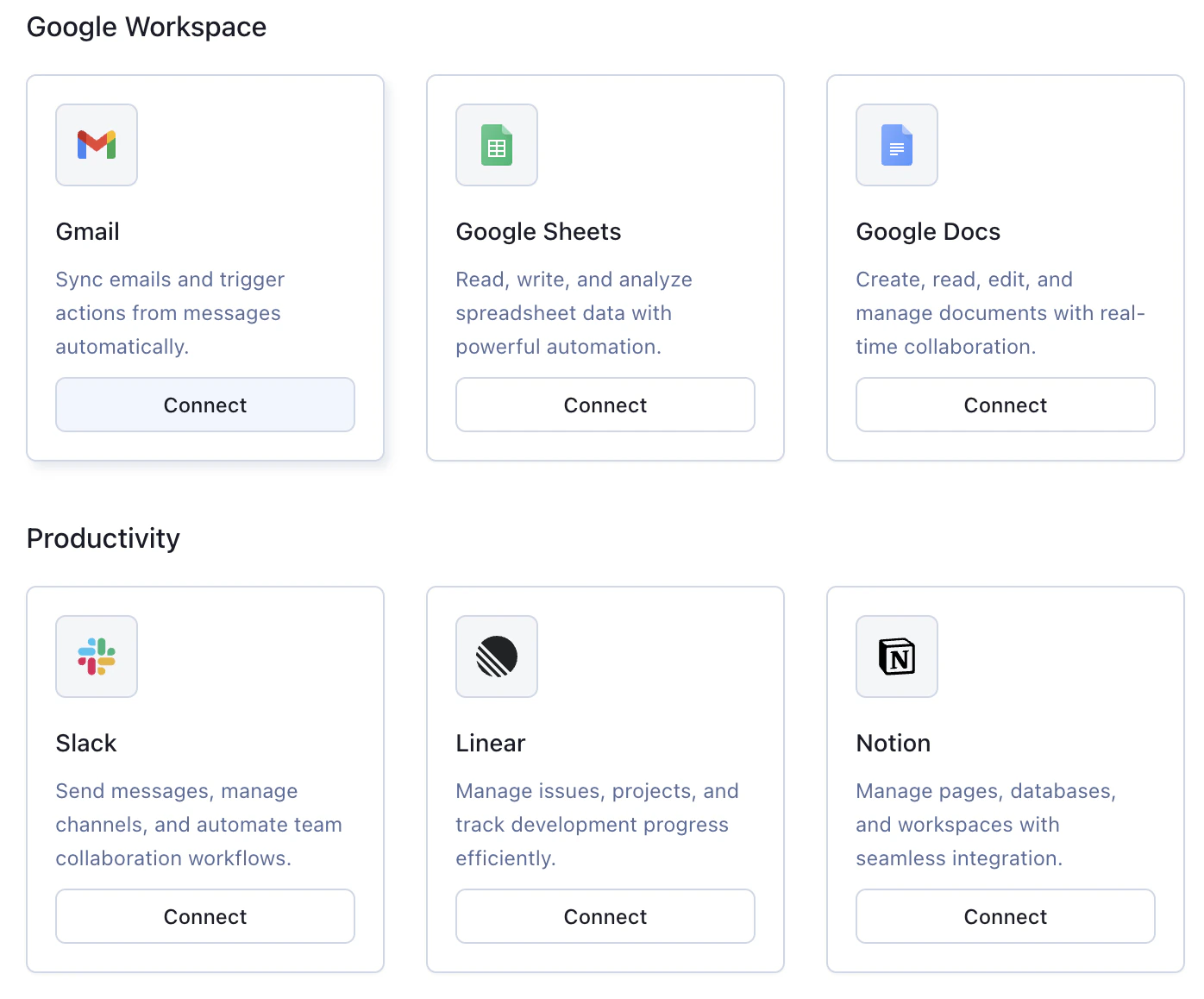
- Complete the authentication steps for the application you’re connecting to
Custom Connections
These can be connected to Duvo in the “Available Connections” tab:- Click ”+ Add Custom MCP” button
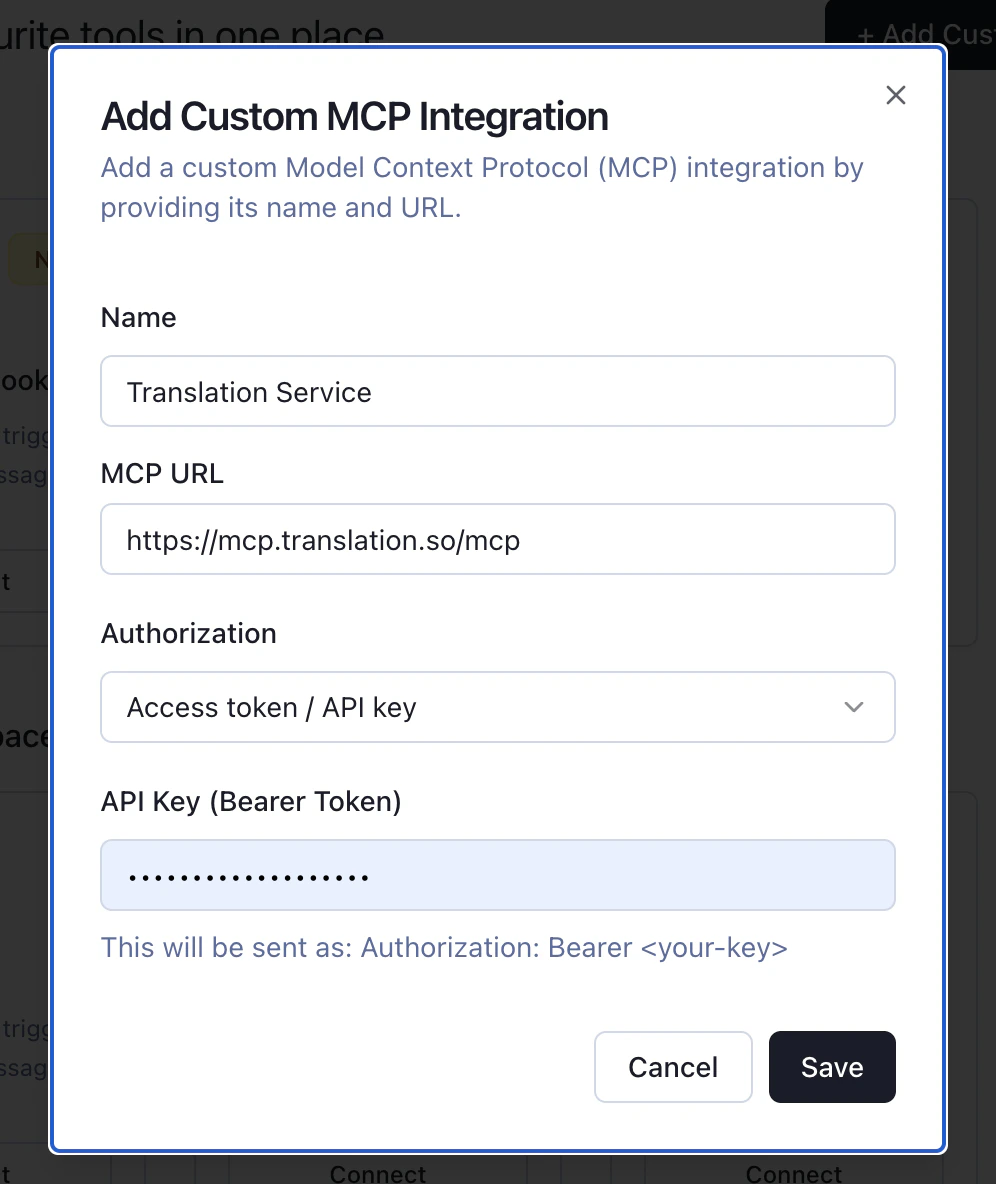
- Name: Choose a descriptive name that identifies what system the connection is supporting
-
MCP URL: Enter the web address where your MCP server is hosted (e.g.,
https://mcp.yourcompany.com/mcp) -
Authorization: Choose how Duvo should authenticate:
- None: No authentication required
- API Key: Provide an API key for authentication
- OAuth: Use OAuth flow for authentication. Duvo automatically detects whether the MCP server supports dynamic client registration (DCR). If it does, no Client ID or Secret is needed — the connection is handled automatically. If the server does not support DCR, or if you prefer to use your own pre-registered OAuth app, you can provide a Client ID and Client Secret in the Advanced settings section.
- Click “Save”